
How to Set Up Payroll in Xero Payroll Solutions
If you want to pay staff in a smooth, stress-free way, the Xero wage platform is a great tool for your firm. It is easy to use, has a neat look, and helps you run pay in less time. It works for both small and large firms, making sure tax laws are met and wages are out on time. In this guide, you will learn how Xero payroll works, how to set it up step by step, and how to use it to save both time and money.
What is Xero Payroll?
Xero Payroll is a web-based pay tool for firms of all sizes. It helps owners and staff track pay, tax, leave, and rules with less work.
Since it runs online, you can log in from any place and process payments without typing the same data twice. It links with your Xero books so you can track pay costs in real time.
How Does Xero Payroll Work?
The process of running the Xero Pay system is simple. Once you add staff details, you can process their pay in less than an hour. You can set up bank accounts, tax rules, superannuation, and pay slip styles, all within the platform.
Xero also lets you:
- Calculate taxes automatically
- Send pay slips online
- Handle leave and timesheets
- Integrate payroll data with your accounts
Key Features of the Xero Pay System
Here are the top features that make the Xero pay system a great choice:
1. Automated Tax Calculations
Xero pay system takes away the stress of working out tax deductions for each staff member. The system uses the latest rules to calculate tax amounts, so you do not have to check rates manually. This reduces mistakes and keeps you compliant without extra effort.
2. Direct Bank Payments
With Xero, you can send pay straight from your linked bank account. This avoids the need for separate payment steps and ensures that staff gets paid on time every pay cycle.
3. Custom Pay Slips
You can make your pay slips look professional by adding your company logo, job titles, and other details. This feature helps keep your brand consistent, even in internal documents.
4. Leave Management
The leave management feature allows you to approve requests, track balances, and record absences in one place. This makes it easier to plan workloads and avoid pay disputes.
5. Timesheets
Xero Payroll lets employees log their hours digitally, which then connects straight to payroll. This means you can process pay for hourly workers without re-entering data.
Step-by-Step Guide: How Xero Payroll Works
Here is a simple guide to set up Xero payroll from start to finish.
1: Set Up Payroll Accounts
Start by adding your main bank account and any other accounts you use for salaries. Go to your organization’s name, then select Settings > Payroll Settings. Under the Organization tab, choose the bank account that will send staff payments. Setting this up early avoids delays when you start running payroll.
2: Add Employee Details
Next, enter the complete information for each employee, including full name, tax file number, address, contact details, and pay rate. You can also select payment methods such as bank transfer or check. Correct employee details ensure accurate pay and smooth compliance with tax and employment laws.
3: Set Default Pay Items
Create standard pay items like hourly wages, salaries, bonuses, and deductions. Having these items ready means you can apply them quickly each time you process payroll, saving time and avoiding mistakes.
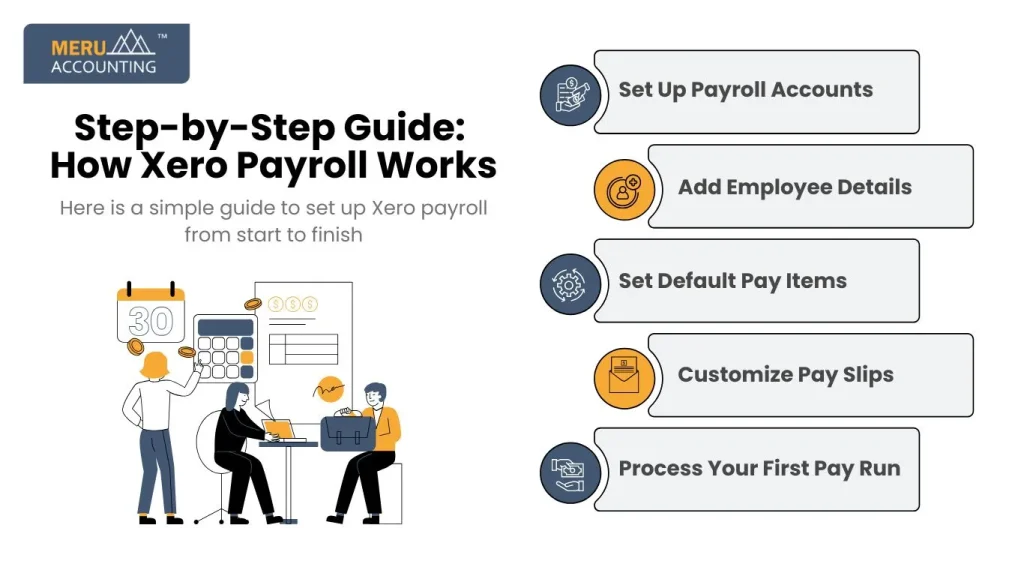
4: Customize Pay Slips
In Settings, click on Pay Slip Options to set your preferences. You can choose to display annual salaries, employment types (full-time, part-time, casual), and add your company logo. Customizing pay slips helps make them easy to read and professional in appearance.
5: Process Your First Pay Run
Select the pay period (weekly, fortnightly, or monthly) and check all figures for accuracy, including hours worked and deductions. Once you review everything, approve and submit the pay run. This will create pay slips and, if linked, start the bank payment process.
Benefits of Using the Xero Pay System for Your Business
Saves Time
Tasks that took a long time can now take less time. The tool can do taxes, sums, and slips for you. You check, then run pay. That frees time to plan, hire, or serve key jobs.
Cuts Slips
Built-in rules help keep sums and tax right in each pay run. You do not need to key in rates by hand. With less handwork, you get a chance of wrong pay or missed steps.
Helps You Meet the Law
The tool keeps tax and old age fund rules in mind as you run pay. Set them once, then the app holds them for each run. This helps you meet the law with less risk and stress.
Builds Staff Trust
When pay is right and on time, staff feel seen and heard. Clear slips, fast send, and quick fix of small flaws build goodwill. This helps you keep the team and cut hiring costs.
Common Mistakes to Avoid When Using the Xero Pay System
Not Keeping Staff Facts Up to Date
Staff tax code, bank, pay rates, and mail can change. If you do not keep facts up to date, the payment may be wrong or late. Set a plan to check and fix these each pay run.
Forgetting to Sign Off Leave
If you run pay while leave is not signed off, you may pay too much or use the wrong leave. Check leave logs first. Make a rule: no pay run out till leave is clear.
Skip Set Up of Old Age Fund
Do not skip the setup for the staff’s old age fund. If rates or due dates are not set, you may miss payments or break the law. Check the fund, rate, and due date, and pay on time.
Use the Wrong Bank
Pay from the wrong bank can cause a lag and a mess in the books. Pick the right bank in the pay setup. Run a test pay of one to make sure it works.
Integrating the Xero Pay system with Other Business Tools
Time Track App
Link a time track app so work time flows to pay with no handwork. Staff can tap start and stop. You check and run pay. This cuts slips and speeds the run by a lot.
Staff Hub
Link the staff hub to the pay tool so names, roles, rates, and hire dates stay in sync. This stops copy work and old rows. One change flows through all boards, keeping facts and rights.
Pay App
Add a pay app to send funds fast and track each pay in view. You can sync refs, dates, and sums with the books. This cuts lag and lets staff get paid on time, too.
Job Tools
Link the pay tool with the job tool so wage costs map to the job. Tag time to a job code and see the time spent by the job team. This helps plan, set bids, and track gain on work.
Xero Pay System Pricing and Plans
Base Fee Per Month
Most plans have a base fee per month to use the pay tool. The fee can shift by place and plan type. Check what you get in that base fee so it meets your needs.
Per Staff or Per Run Cost
In most plans, you pay a sum per staff or pay run. This lets small firms scale costs with headcount. Watch how many runs you do, as that can raise your bill fast.
What Parts You Get
Not all parts show in each place. Tax files by the tool, year-end forms, or add-ons may not be there. Read the plan page to see what parts you get in your place.
Check the Latest Price
Pay plans can change at times. See the main site for up-to-date fees, staff caps, and terms. Check add-ons, too. This helps you pick the plan that fits your needs and spending.
Tips to Get the Most Out of the Xero Pay System
Keep Staff Files Up to Date
Keep staff files up to date for names, tax, bank, pay, and mail. Gaps can lead to wrong pay or a late send. Set a place to fix work and log each change in a note.
Use Linked Time Sheets
Use linked time sheets so work time feeds to pay with no handwork. Staff tap in and out. You check the log, make tweaks, then run pay. This saves time and cuts slips.
The heck, Tax Set Often
Tax rules can shift. Check the tax set in the tool a lot so rates and codes stay right. Use a set day each month to scan the list, note a change, and fix it at once.
Brand Pay Slips
Add your mark and work type to each pay slip so staff can see pay, tax, cuts, and leave left at a glance. A clean slip helps end hire asks and cut mail to the team.
Set Pay Run Notes
Set pay run notes so you do not miss steps. Use date flags, cut-off, file due, and pay day. Share the list with a backup in case you’re out or on leave.
At Meru Accounting, we are experts in Xero payroll setup and management. We help you:
- Set up accounts and employee profiles
- Run payroll accurately
- Stay compliant with tax laws
- Integrate payroll with your Xero accounts
FAQs
Q1: Can I run payroll on my phone with Xero?
Yes. You can use the Xero app on your phone to run pay runs, check staff hours, and send slips. It works on both iOS and Android, so you can manage pay from anywhere.
Q2: Does it handle tax filing?
Yes. The tool can work out tax, fill out the right forms, and send them to the tax board. This helps you meet the law and cuts time spent on year-end tax tasks.
Q3: Can I pay overseas staff?
Yes. You may need a linked pay service for funds sent to other lands. Once set up, you can send pay in the right cash type and track all the sends with ease.
Q4: How safe is the pay data?
The tool uses high-grade locks and code to guard all pay and staff data. This means only those with rights can see the files. It also keeps full logs of all use.
Q5: What makes Xero payroll easy for small firms?
It is made to be quick to set up, with clear steps and links to your books. Small firms can run fast, cut slips, and still meet all rules without high costs.